
Campaign Manager
💡
Tip: Sending Mass Emails to your contacts is best done via 🔁Podio Workflow Automation for better control and flexibility.
See our example: 📤OUTBOX - for Campaigns.
See our example: 📤OUTBOX - for Campaigns.
The Campaign Manager sends a Commercial Template to items in a Podio View.
Select Campaigns from the top menu to get started!

⚙
The number of Campaign Emails you can send in each mailout depends on your Plan Level.
View our tutorial video, then Get Started by clicking Create New Campaign
 https://www.youtube.com/watch?v=SZped-BUS0g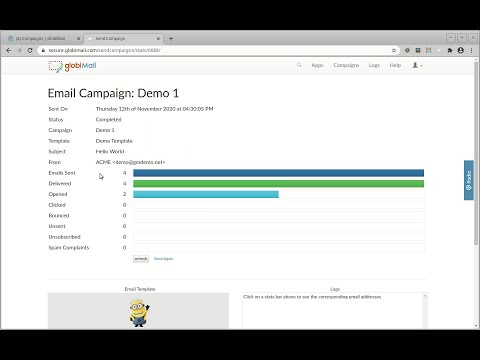

- Select the Podio App, the View of Contacts, and your created Commercial 📚Email Templates

The email data from the Template will then populate
 📌For a newly created View, remember to ⛲Refresh from Podio to update GlobiMail.


- Certify that the email is not Spam and click Send
 ❗Failure to comply with local spam laws can result in the deactivation of your account.
View Spam Complaints in the 📠Email Logs & Troubleshooting to see how these affect your rating.

Each email creates a Comment on the Podio Item.
Contacts will reply, and employees can respond directly to this email in Podio as usual.
Emails will come from a mapped address from @send0n.net to prevent degrading the sending rank of our server.
Set the 🚀Sending Domains to send directly from your address.
Track Open Rates and Unsubscribes from the Campaign Report.
You can also use 🚗Automation Triggers to track these in Podio.
Troubleshooting
- The Campaign did not send to all the items in the Podio View:
- Verify that there is a Contact mapped in the 🎯Configuration Settings
- Check that all items in the view have valid email addresses
- Complete a 🏜️Reload Podio Items to ensure the App in Globimail has the same amount of items as the App in Podio
- Emails are going to SPAM
- Check your Reputation on the main page
- Test the Spammyness of your Email with a Mail Tester