
Email Sequences
Email Sequences allow you to drip a series of emails to your contacts automatically, one step at a time. This is ideal for onboarding, follow-ups, or nurture campaigns.
Before you start, ensure you have the following:
- Connect your Podio App to GlobiMail
- Create Commercial Email Templates for each step in the sequence
Select Sequences from the top menu to set up and manage your sequences.

Create New Sequence
- Set the required settings:
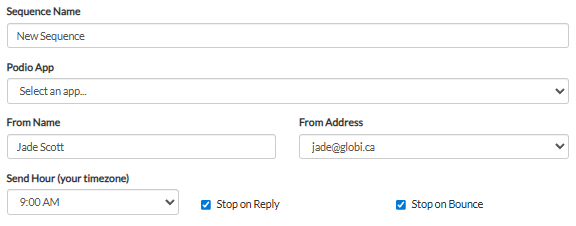
- Give the Sequence Name a unique title
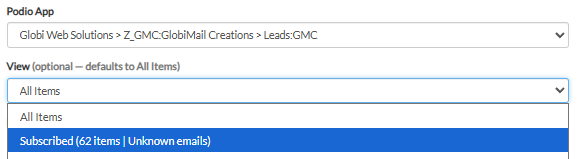
- Select the Podio App to send from
💡Ensure the email field is mapped in the App Configuration
- Confirm your From Name and From Address
- Set the Send Hour (your timezone)
- More optional settings include:
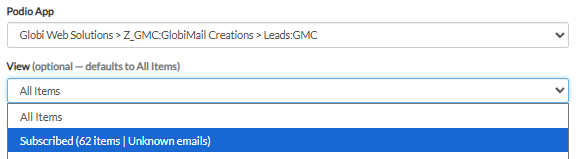
- Once the App is connected, the option to choose a Podio View becomes available
Useful when targeting a specific subset of records within a large app
- Stop on Reply will stop the sequence when the contact replies to a step
- Stop on Bounce will stop the drip from continually emailing bounced addresses
- Once the App is connected, the option to choose a Podio View becomes available
Configure the Steps
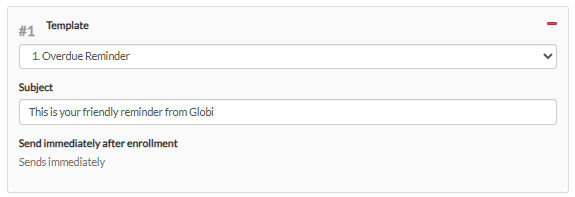
- Start by setting Step 1
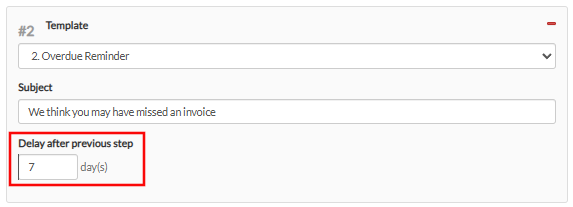
- Select the Template used for this step and define the Subject line
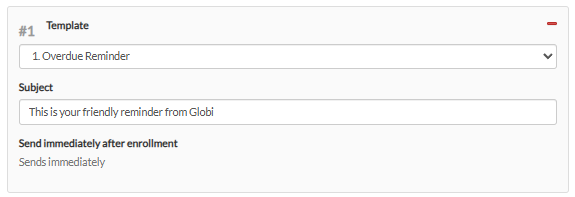
- Select the Template used for this step and define the Subject line
- Click Add Step to add the rest of your sequence

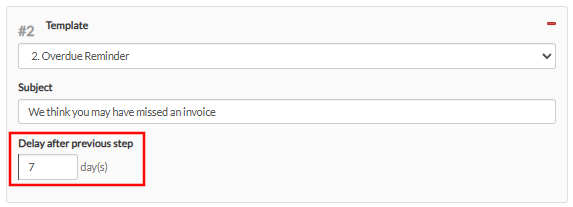
- Select the next Template and define the Subject line
- Set the Delay for the number of days after the previous step

- Click Save Sequence to save as Draft
Activate Sequence
- From the sequence manager, click the Activate button from the Actions column


- This will Enroll all items from the chosen App or View💡
Enrollment = when a contact enters the sequence and begins receiving emails
- Newly items created will automatically enroll into an active sequence within the App
- Duplicate emails are skipped, not enrolled in the drip
- Step 1 emails are sent immediately after enrollment
- At activation, and at item creation, newly enrolled contacts are put into the queue and receive Step 1 emails at the top of the next hour
- At activation, and at item creation, newly enrolled contacts are put into the queue and receive Step 1 emails at the top of the next hour
Active Sequence Actions
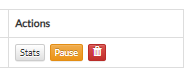
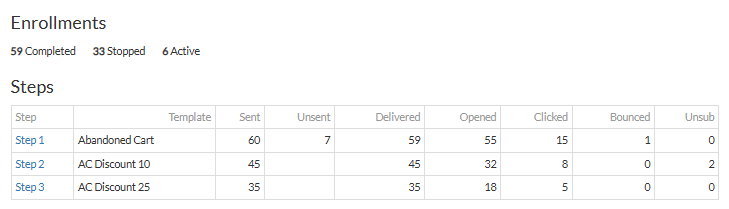
- Stats allows you to view your Sequence report
- View your open rates, see who has clicked a link or unsubscribed, etc
- Duplicates that enrolled or contacts who have previously opted-out are shown in Unsent
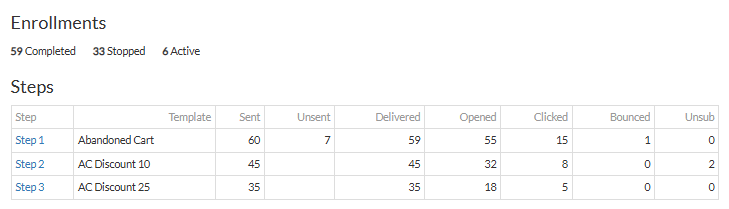 💡
💡- Click into each Step to expand each report and download email lists for analysis
- Pause an active sequence
- This will stop all active Enrollments where they are at in the sequence
- When the sequence is reactivated, enrolled contacts will pick up where they left off
- Delete the sequence⚠️
Once deleted, the sequence is removed from the system and stats are no longer accessible